
Visual fix guide
Follow this path before you factory-reset anything. Most Verizon internet problems are either an area outage or a modem/router sync issue — the order below saves time.
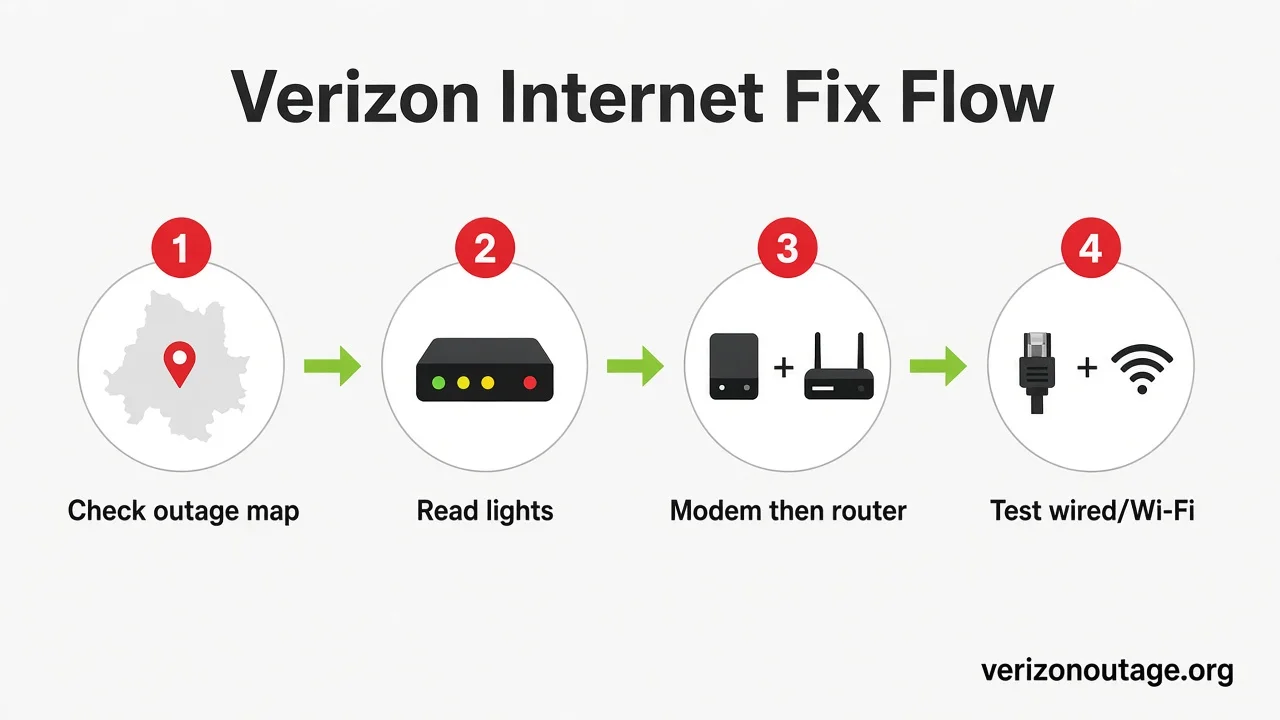
STEP 01
Check for an outage
If neighbors report the same issue, wait for restoration instead of resetting gear.
STEP 02
Read the lights
Solid blue/white is healthy. Long blinking or red usually means the WAN link failed.
STEP 03
Power-cycle correctly
Modem first, then router. Wrong order is why many reboots seem to fail.
STEP 04
Test wired vs Wi‑Fi
If Ethernet works but Wi‑Fi does not, the line is fine — fix the wireless layer.
Start here
Quick fix (works for ~70% of problems)
Unplug your modem and router, wait 60 seconds, then plug the modem back in first. Wait 2 minutes, then power on the router. Give it another 2 minutes to fully connect. If the lights settle to solid blue/white, you're back online.
Step 1: Check for a Verizon Outage First (Don't Skip This)
Before you touch a single cable, find out whether the problem is even yours to fix. A huge share of “my Verizon internet is down” situations are actually area-wide outages — and no amount of rebooting will help until Verizon restores service.
Signs it's an outage, not your equipment:
- Every device in your home loses internet at the same time
- Neighbors or others in your ZIP code report the same issue
- Your modem shows no "online" light or displays solid/blinking red lights
- A live outage map shows a spike of reports in your area
How to check for a Verizon outage:
- Use a live outage map. Check real-time reports by ZIP. Open our live map or check your ZIP.
- Check the My Verizon app or verizon.com. Sign in and look for an outage alert banner.
- Look for a text message. Verizon often texts the account holder during confirmed outages.
- Call the automated line. Customer service guide.
Step 2: Understand What Your Verizon Modem & Router Lights Mean
Status lights are your fastest diagnostic tool. Read what your equipment is telling you before resetting anything.
Tip: Match the light on your gateway to the chart below before you reboot — red and long blinking usually mean a cable or outage issue, not a bad Wi‑Fi password.
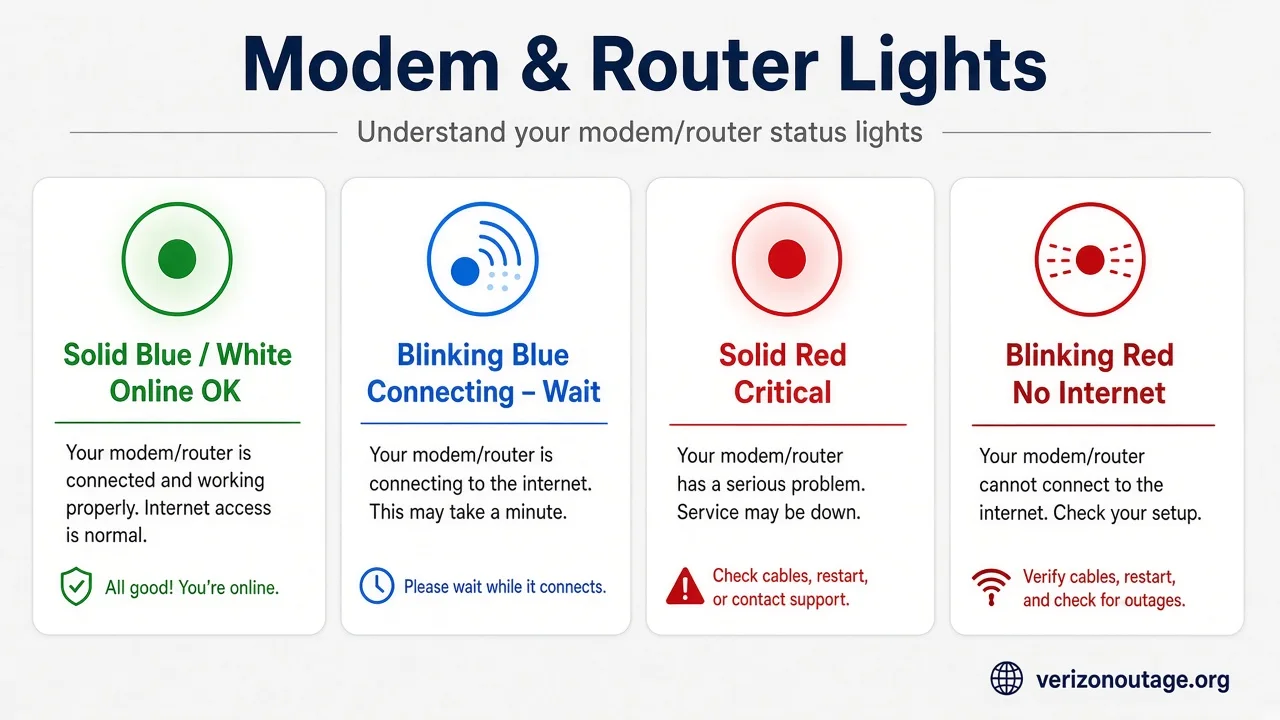
| Light / behavior | What it means | What to do |
|---|---|---|
| Solid blue | Connected and working normally | No action needed |
| Solid white | Connected (DOCSIS 3.0 — slightly slower than 3.1) | No action needed |
| Blinking blue & white | Modem is trying to connect to the internet | Normal for 1–3 min at startup; if longer, troubleshoot cables and check for an outage |
| Blinking blue & red | Firmware update in progress | Wait — do not unplug |
| Solid red | Critical error / no signal | Power-cycle; check cables; check for outage |
| Blinking red | No internet connection or outage | Check coax cable and outage map; reboot |
| Red & white alternating | Often indicates overheating | Move to a ventilated spot; let it cool |
| No lights at all | No power | Check power cable and outlet |
Key takeaway: Brief blinking blue-and-white at startup is normal (1–3 minutes). Modem online light off?
Step 3: Restart Your Verizon Equipment (The Right Way)
Order matters. Restarting in the wrong sequence is the #1 reason a reboot “doesn't work.”
Order matters: modem/ONT first, wait for online lights, then router. Reversing that order is why many reboots “fail.”
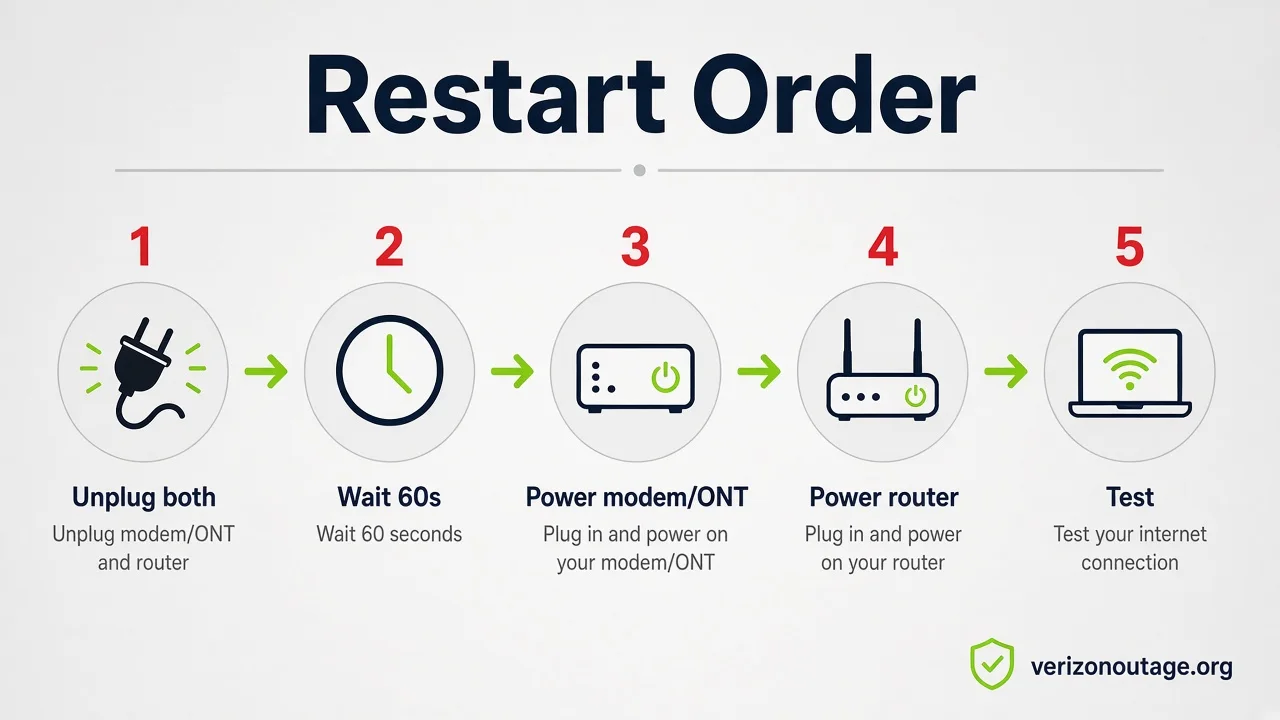
Manual power cycle (recommended first)
- Unplug the power cord from the modem. If you have a separate router, unplug it too. Coax/cable customers: unplug from the back of the modem. Fiber customers: avoid touching the fiber cable — switch off power at the wall outlet instead.
- If your modem has a backup battery, remove it as well.
- Wait at least 60 seconds. This clears temporary memory and lets the modem re-sync with the network.
- Plug the modem back in first. Wait about 2 minutes for its lights to come up and stabilize.
- Then power on the router. Wait another 2 minutes for it to fully connect.
- Test your connection on a device.
Restart through the My Verizon app or website
- Sign in to verizon.com or open the My Verizon app.
- Go to Services → Internet (or the "Your Services" tab).
- Select your equipment from the list. Status shows as Connected, Unavailable, or Connection Issue.
- If you see "Connection Issue," tap Troubleshoot or Restart Equipment.
- The reset takes roughly 2–5 minutes to complete.
Watch: common Verizon fixes
Short walkthroughs for the two issues people search most often after an outage check — Wi‑Fi bars with no internet, and a red gateway light.
How to fix Verizon Wi‑Fi connected but no internet
Walk through the fastest checks when devices show Wi‑Fi bars but pages will not load — confirm whether the modem lost the WAN link before you factory-reset anything. Open on YouTube.
How to fix a Verizon router blinking or solid red light
Step-by-step checks when the gateway shows a solid or blinking red light — outage check, cables, and a correct power cycle before requesting a replacement. Open on YouTube.
Common Verizon Internet Problems & Fixes
Verizon Internet Not Working / No Connection At All
- Check for an outage (Step 1) — rule this out first.
- Inspect every cable. Power, coax (screwed firmly at modem and wall), and Ethernet between modem and router must be snug. A loose coax connector is one of the most common culprits.
- Power-cycle in the correct order (Step 3).
- Test a wired connection. Plug a laptop directly into the modem with Ethernet. If wired works but WiFi doesn't, the problem is the router or WiFi — not the Verizon line.
- Try a different coax outlet if you have wall jacks in other rooms.
Connected to Verizon WiFi, but No Internet
This is the classic "WiFi has full bars but nothing loads" situation. Your device reaches the router fine — the router just isn't reaching the internet.
- Check the modem's online light. If it's blinking blue/white or showing red, the modem lost its connection — power-cycle the modem.
- Restart the device you're using (phone, laptop, TV). Toggle WiFi off and on, or restart it entirely.
- Forget and rejoin the WiFi network on the device.
- Power-cycle the modem and router in order.
- If a wired device also can't reach the internet, the issue is upstream — check for an outage or call Verizon.
Verizon Internet Is Slow
- Run a speed test on a device connected by Ethernet to the modem. Compare to your plan. If wired matches your plan but WiFi is slow, the bottleneck is WiFi — not your Verizon line.
- Use a wired connection for important tasks with Cat 5e or higher Ethernet.
- Reduce the load — pause streaming, large downloads, file-sharing apps, and cloud backups.
- Improve router placement (see Advanced Fixes below).
- Check your hardware. Use 802.11ac (WiFi 5) or WiFi 6 for plans above 300 Mbps; older 802.11n tops out around 300 Mbps.
- Scan for malware and close background apps. Viruses, adware, and strict firewalls can throttle speeds.
- Reboot the modem and router to clear congestion.
Verizon Internet Keeps Dropping / Disconnecting
Intermittent drops (sometimes called "flapping") are some of the most frustrating issues.
- Overloaded node / partial outage — check the outage map; if neighbors have the same issue, it's a Verizon-side node problem that needs a technician.
- Overheating router — if it drops more in the evening or after running for hours, move it to an open, ventilated area and don't stack it on the modem.
- Damaged or loose coax cable — inspect for kinks, cracks, or corrosion. Re-seat or replace the cable.
- Coax splitter — if you have a bundle (TV + internet), a failing splitter can cause drops. Try connecting the modem without it.
- WiFi channel interference — neighboring networks on the same channel cause instability (see Advanced Fixes).
- Outdated firmware — make sure your equipment has the latest firmware (Verizon modems usually update automatically).
If drops persist after all of this, ask Verizon to check your signal levels — a technician can spot line noise you can't see at home.
Forgot Your Verizon WiFi Name or Password
- Check the sticker on the bottom or side of your router — the default network name (SSID) and password are usually printed there.
- Check your installation guide, where you or the technician may have written the credentials.
- Use the My Verizon app to view and manage your network name and password (especially with Advanced WiFi).
- Verizon recommends keeping the default credentials; if you changed them and got locked out, contact support to reset.
Verizon Router Blinking White & Blue (Won't Stop)
A blinking white-and-blue light means the router is stuck trying to connect. Normal at startup for one to three minutes — a problem if it continues longer.
- Complete the full power cycle (Step 3).
- Check the coax and Ethernet cables between modem and router for a loose or damaged connection.
- Rule out an outage.
- Let firmware updates finish if you see blue/red.
- If it never goes solid, the modem may need re-activation — contact Verizon.
Verizon Router Blinking Red (or Solid Red)
- Blinking red: no internet connection — often an outage or a signal problem. Check the outage map and power-cycle.
- Solid red: a fatal/unresolved error. Check all cables, try a different coax outlet, and reset the equipment. If it stays red, the modem may be failing and need replacement.
New Equipment / Self-Install Won't Activate
- Connect everything: coax to modem, modem to power, router to modem, router to power.
- Wait for the modem to fully boot (lights settle).
- Activate via verizon.com/selfinstall, the My Verizon app, or by calling the activation line. Activation can take a few minutes.
- If activation fails, the modem may not be provisioned to your account yet — contact Verizon to push it through.
Advanced Fixes for Stubborn Problems
- Optimize router placement. Put the router in a central, elevated, open location. Keep it away from thick walls, metal objects, microwaves, cordless phones, and other electronics that cause interference. Don't tuck it inside a cabinet.
- Replace aging cables. A worn Ethernet or coax cable degrades signal quietly. Swap in a quality Cat 5e/Cat 6 Ethernet cable and a fresh coax if yours looks damaged.
- Change your WiFi channel. In crowded apartments, dozens of networks fight over the same channels. Switch the 2.4 GHz band to channel 1, 6, or 11, and prefer the 5 GHz band for nearby high-speed devices.
- Separate or band-steer your network. A weak 2.4 GHz connection in a far room can be more stable than a dropping 5 GHz one — and vice versa for speed up close. Advanced WiFi handles this automatically; older routers may let you split the bands.
- Keep firmware current. Outdated firmware causes random bugs and drops. Verizon modems generally update on their own, but confirm there's no pending update stuck in progress.
- Build good habits. Restart your modem and router about once a month to keep the connection fresh, and keep the My Verizon app installed so you can check outages and reset equipment in seconds.
How to Test Your Verizon Internet Speed
- Connect a computer to the modem with an Ethernet cable (this measures your true line speed without WiFi interference).
- Close other apps and pause downloads/streams.
- Run the Verizon Speed Test or a trusted alternative.
- Compare your download and upload results to your plan.
When (and How) to Contact Verizon Support
If you've checked for an outage, power-cycled correctly, tested a wired connection, and inspected cables — and you're still offline or slow — call Verizon.
Before you call, have ready:
- The phone number on your account
- Your account number or billing statement
- What you've already tried
- Any error messages or light colors you're seeing
Official Verizon contact options:
- U.S. customer service (or 611 from mobile): 1-800-922-0204
- Digital / Internet / TV service: 1-800-837-4966
- Technical support: Available 24/7 by phone and live chat
- New service / orders: 855-860-9068 (Mon–Sun, 7 AM–2 AM ET)
- Live chat: Sign in at verizon.com and use the "Ask Verizon" / chat tool
- My Verizon app: Troubleshoot, restart equipment, check status, and chat
Frequently asked questions
Troubleshooting-only answers for no internet, red lights, Wi‑Fi connected with no access, and modem/router restarts — aligned with common Google “how to fix” searches.
VerizonOutage.org is independent and not affiliated with Verizon Communications. For account-specific issues, confirm steps through the official My Verizon app or verizon.com. Support: 1-800-922-0204.